A sensor can be added either via the "BlueZoo Foot Traffic Analytics mobile app" or the BlueZoo web dashboard
To add a new sensor to your BlueZoo account through the dashboard, follow these easy 3 steps:
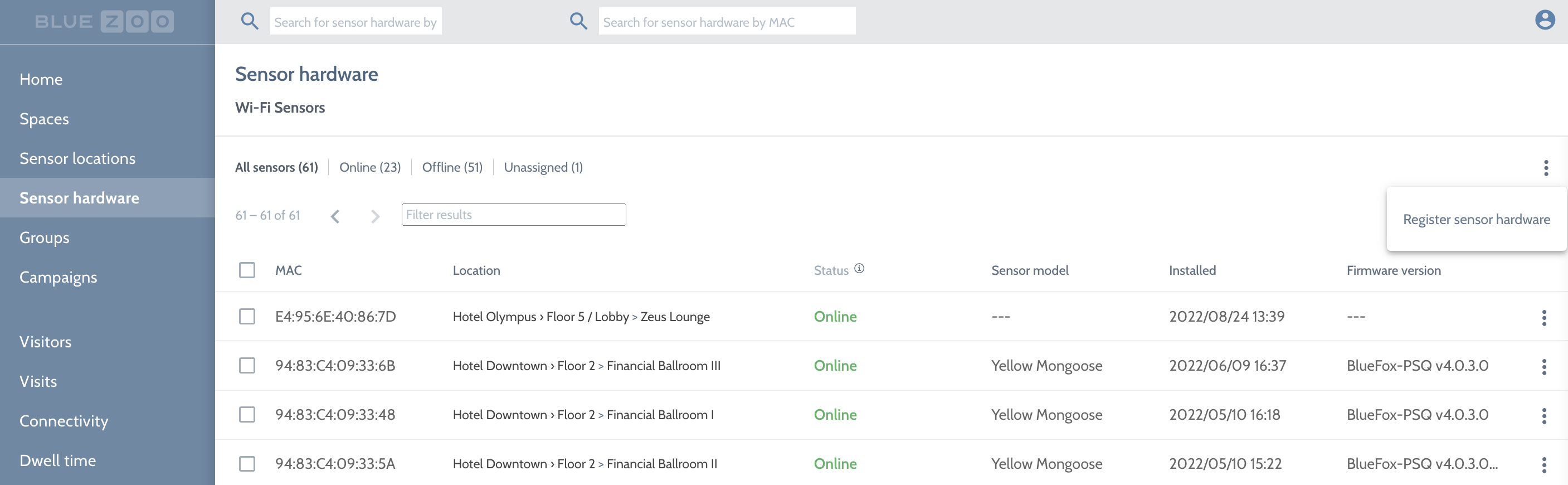
- In the Sensor hardware menu, “Register sensor hardware”:
Enter the MAC address of the sensor hardware and optionally add any special description desired.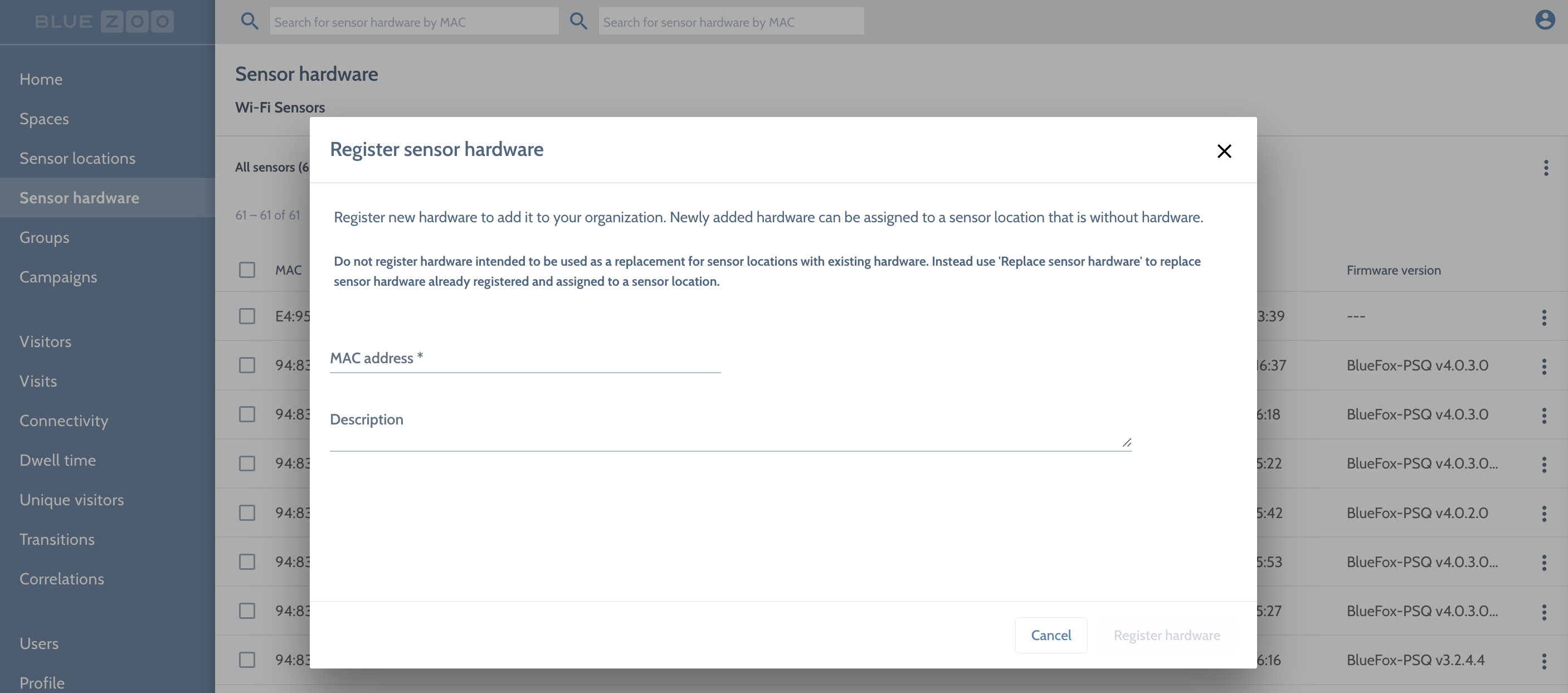
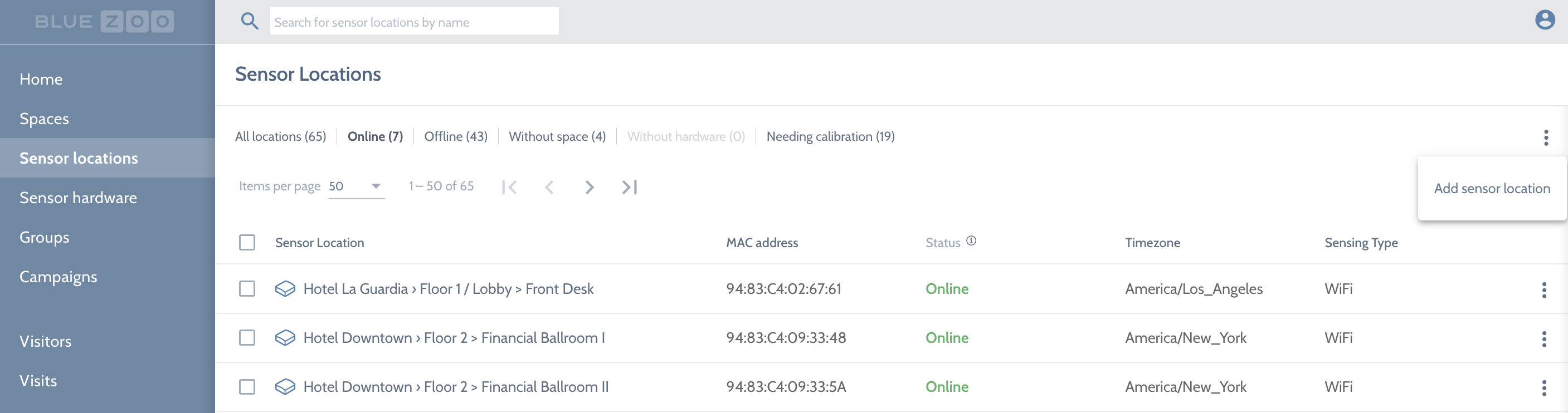
- In the sensor location menu, “Add sensor location”:
Specify the timezone of the sensor location. Optionally, you can choose a “Space” in which you want this sensor to be located. Optionally, you can set a street address. If you also set a latitude/longitude that lat/long will be used to locate your sensor on a map. If you set a street address but do not set a lat/long, the sensor will be located on a map at the street address you specify.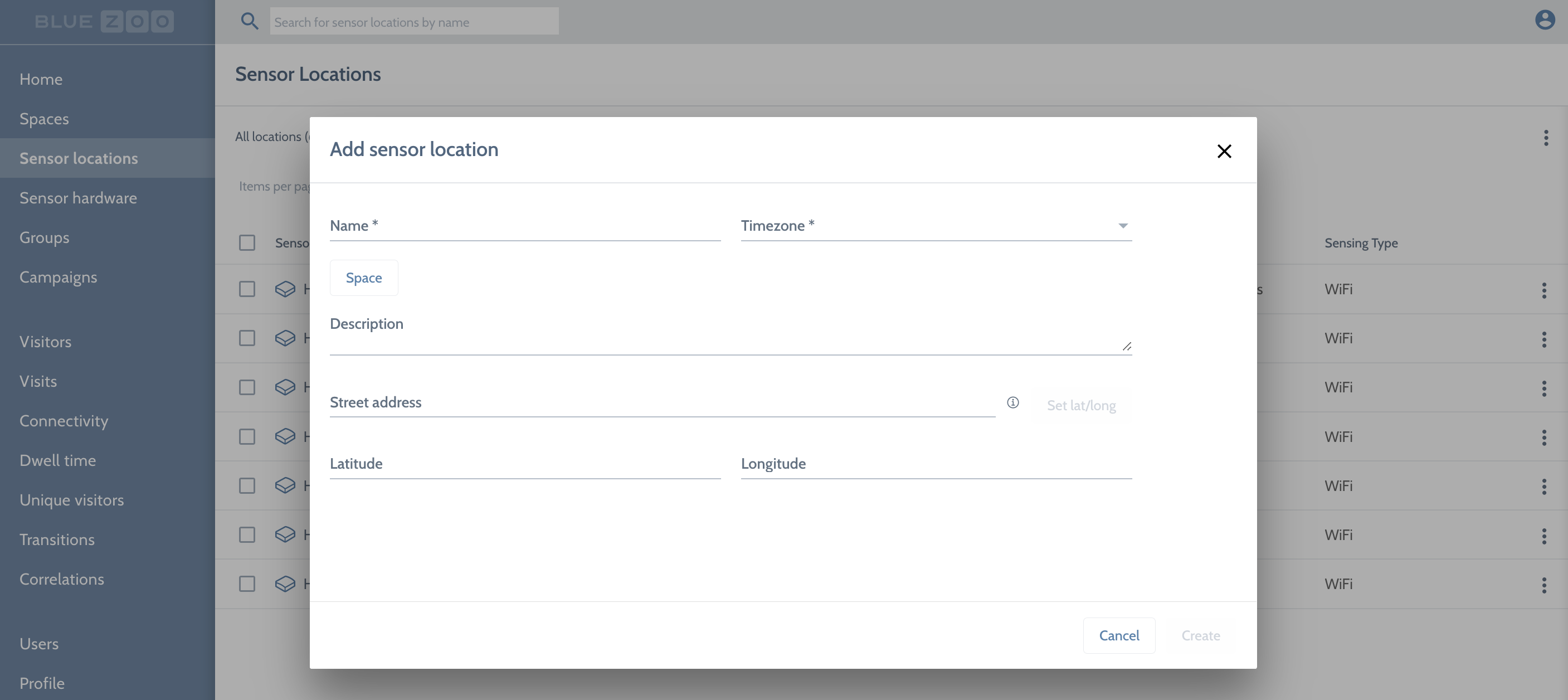
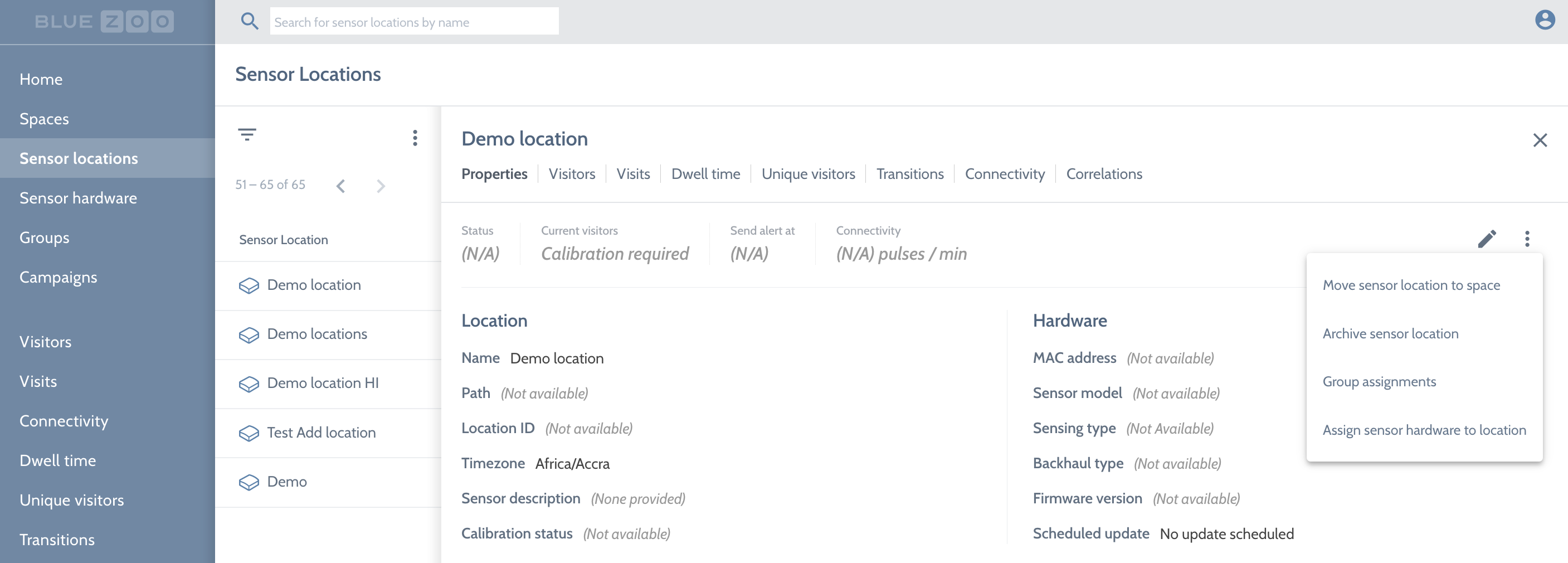
- Click the extended menu of that newly created location and “Assign sensor hardware to location”:

If you need to add a very large number of sensors, contact our Customer Success team to effect a bulk import.
Comments
0 comments
Article is closed for comments.